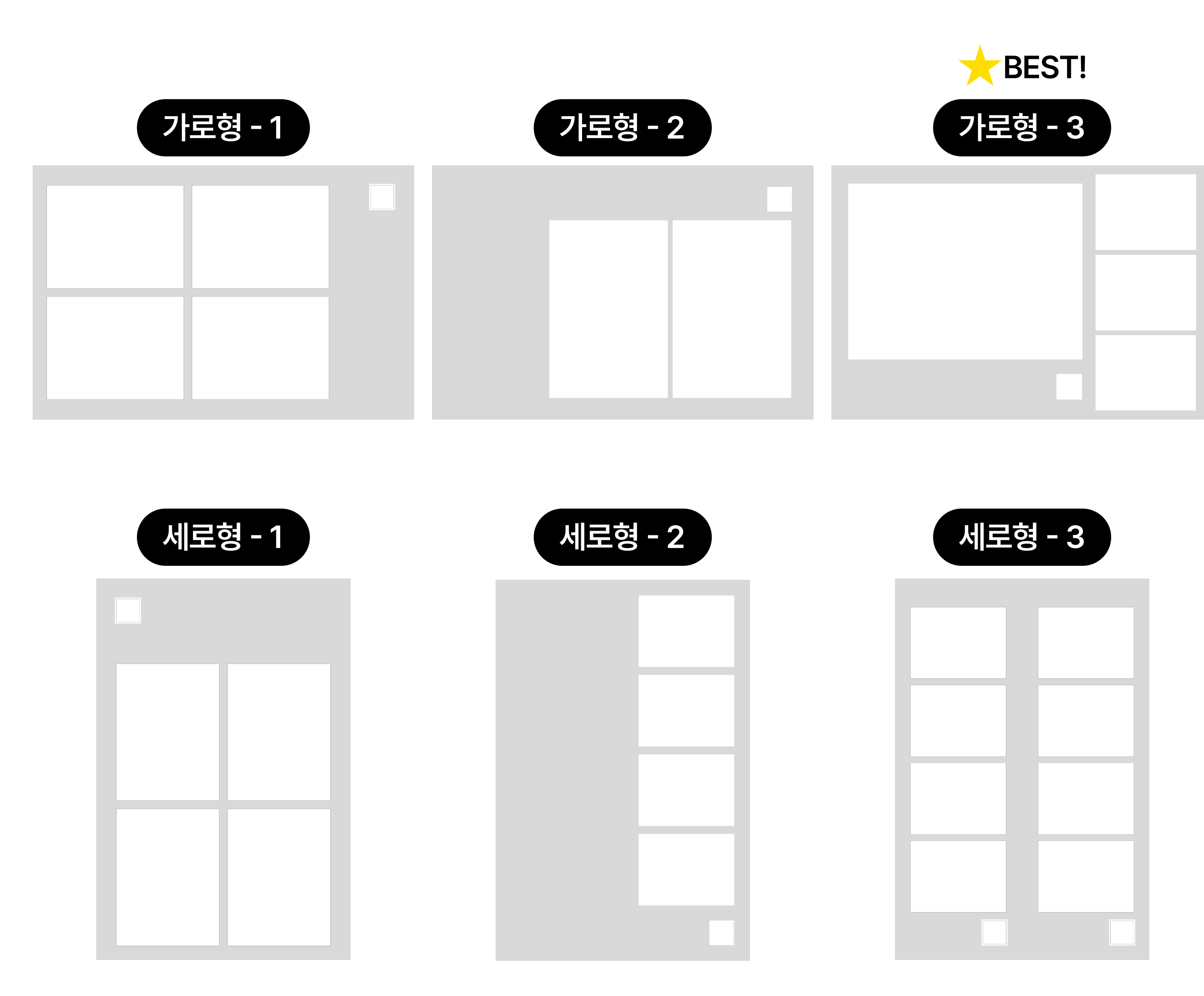
Choose a color-booth layout for your event concept and group size. For a menu of frame choices, we recommend four or fewer. The B&W Mini prints one photo per layout.
Layout
Features
Best for
Landscape 1
4 photos + logo on the right
Group photos
Landscape 2
2 photos + logo on the left
Short sessions, such as weddings
★ Landscape 3
1 + 3 photos + logo below
Featuring an AI portrait
A larger photo area helps show the detail in an AI portrait.
Layout
Features
Best for
Portrait 1
4 photos + logo above
Individuals and small groups
Portrait 2
4 photos + logo on the left
Highlighting a logo or message
Portrait 3
4 photos printed as 2 strips
Events where guests split the print
Produced by Humaner Co., Ltd.Ver.261014.01
STEP 1. Frame customization examples
Frame designs used at previous events. Apply your colors, logos and wording to a layout. Discuss changes to photo placement with our team.
Preparation notes
Photo positions and sizes can be adjusted. We review the revised layout together before use.
Add event logos, wording, dates and sponsor logos.
Submit PNG, PSD or AI artwork using the supplied template. Keep photo and QR areas transparent in PNG files.
Send the final approved frame at least 3 business days before your event.
Applying finished artwork and commissioning design are separate services. Design, exterior fabrication and installation are quoted separately.
Combine an original photo with AI results, or use AI images in multiple photo slots. Plan the number of converted photos and the print layout together. Processing time depends on photo count, style and the event network.
Illustrations 1-3: replace the original background with a solid color; retain the photographic background; or place the portrait over a new background image.
Preparation notes
The 1 + 3 layout with one large AI image is a starting example. Discuss layouts with multiple AI images with our team.
AI image positions follow the approved frame layout. When using several frames, confirm image counts and styles for each.
Portrait style and background composition can be selected independently. Confirm the background assets and choices during consultation.
Produced by Humaner Co., Ltd.Ver.261014.01
STEP 3. Customize the booth exterior
Customize the booth exterior to match your event concept. Check the available design areas and preparation notes. Our team supplies a template for your selected model and branding scope.
Preparation notes
Without exterior customization, the standard front is plain white.
Front, back and side surfaces can be customized as needed.
Brand the first screen guests see when they approach the booth. Use your logo, wording and background colors.
Item
Specification
Resolution
1920 × 1200 (14-inch screen)
Required information
For free-photo events: explain that photos are free and say “Touch to start”.
Design areas
Background, wording, logos and colors outside the required information areas
File formats
PNG / PSD / JPG (RGB, 300 dpi)
Submission deadline
At least 3 business days before the event
Preparation notes
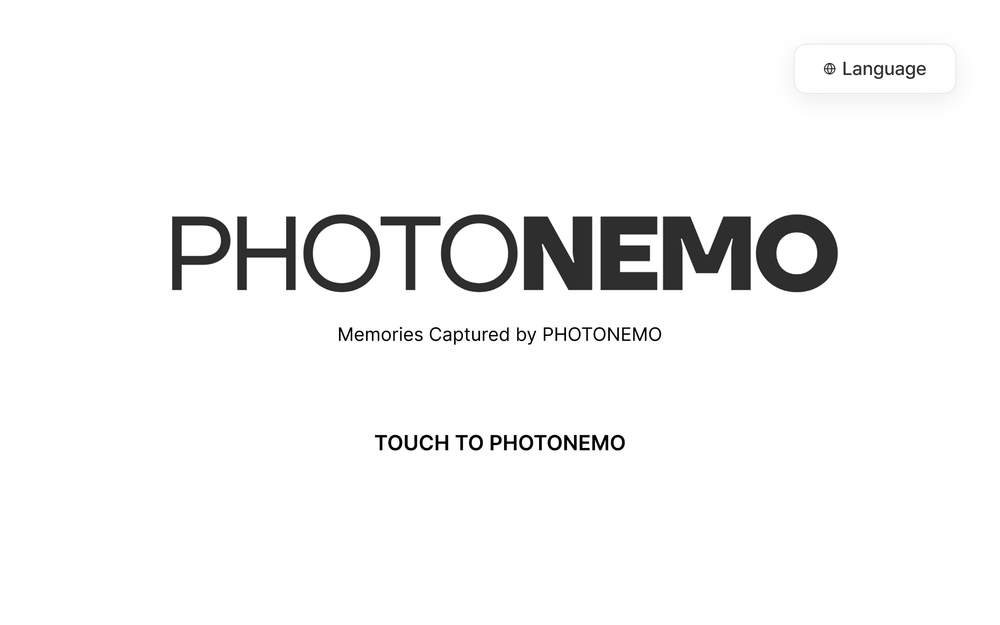
The default is a white background with the PHOTONEMO logo.
Use the supplied template for your custom artwork.
Keep the instructions and start action easy to recognize. This Korean demo shows the default screen for a free-photo event.
Produced by Humaner Co., Ltd.Ver.261014.01
STEP 5. Design event signage
Use signage for queue direction, booth instructions and your event message. These examples use A3 signage. Design it to match your event concept.
Preparation notes
Use high-contrast text colors for readable prints.
Submit print artwork as PDF or PNG.
We recommend a 5 mm print margin.
Produced by Humaner Co., Ltd.Ver.261014.01
STEP 6. Explore the guest experience
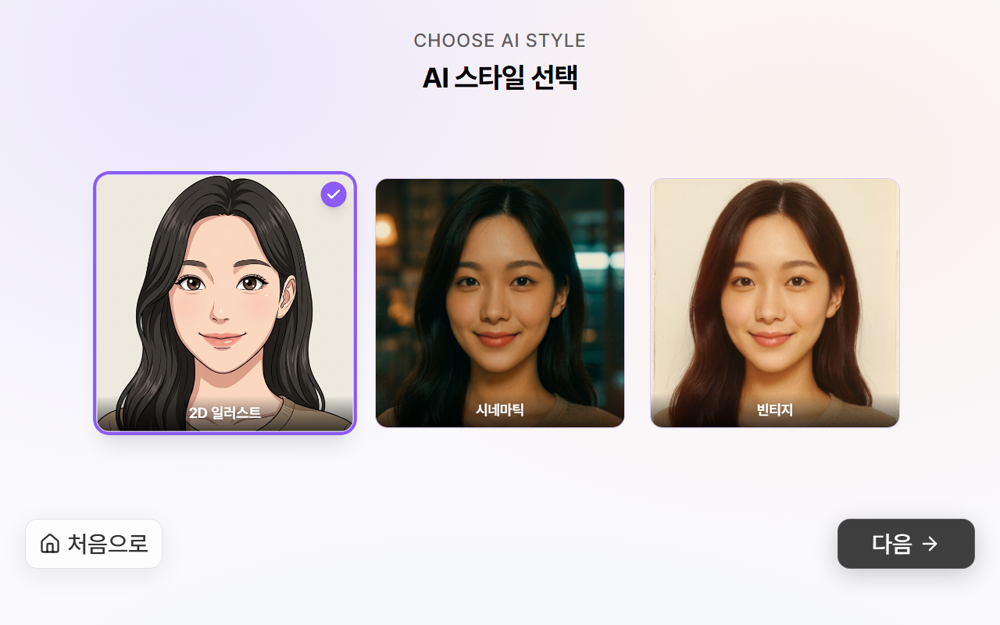
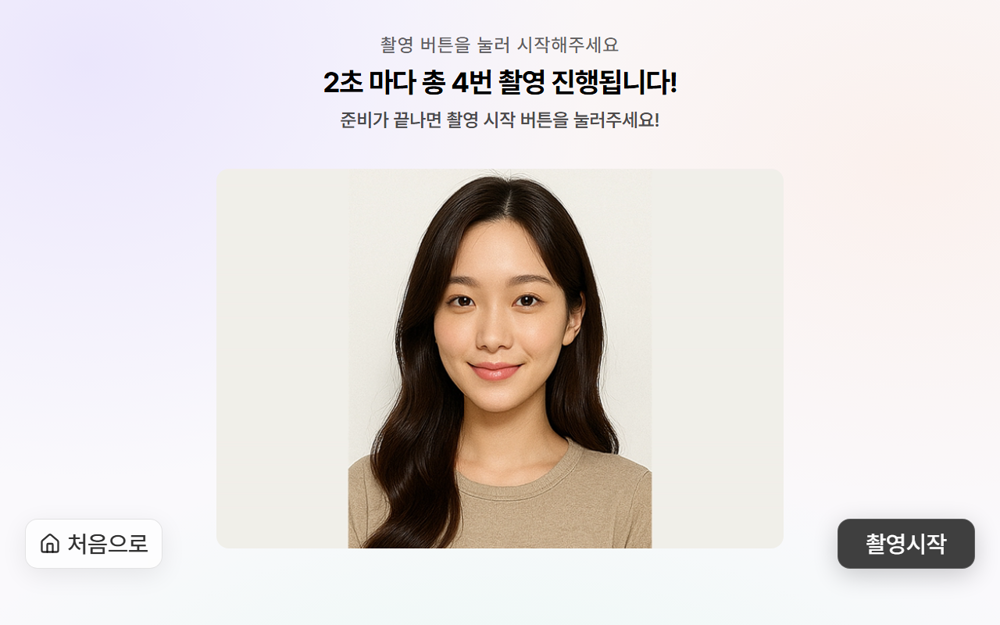
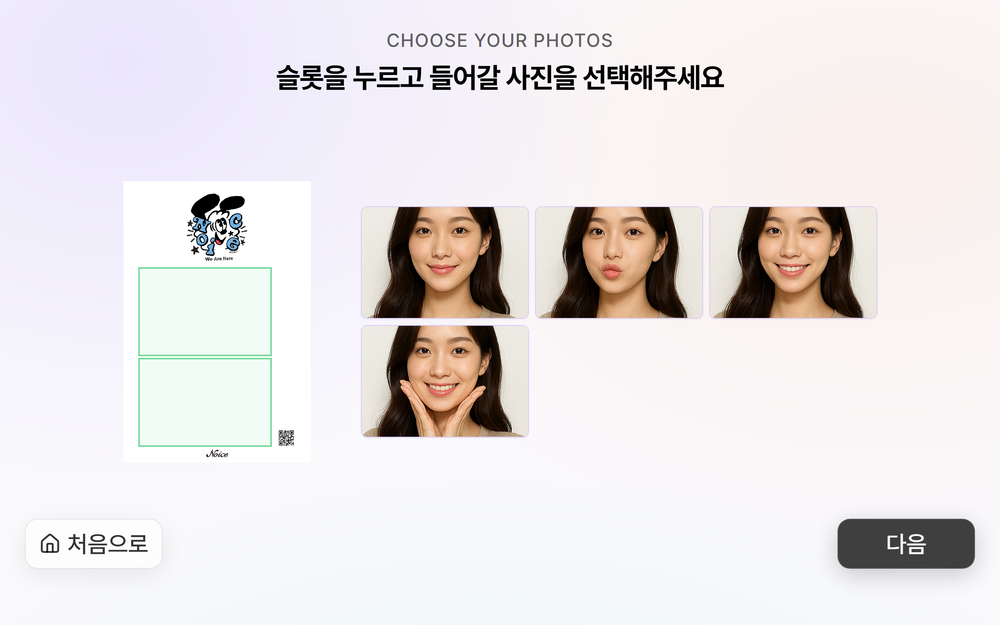
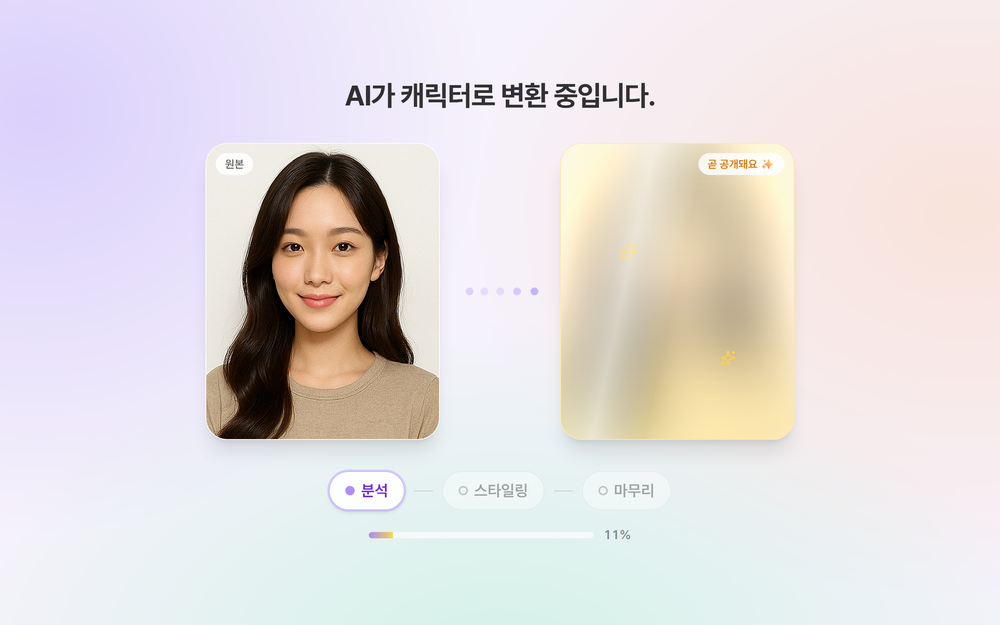
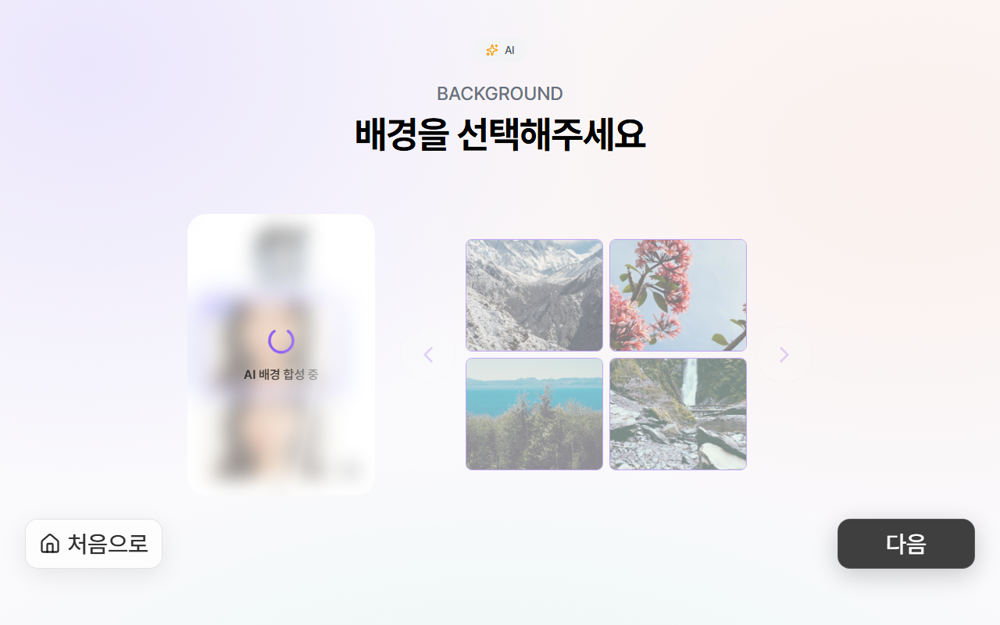
These Korean demo screens show portrait style conversion and background selection. Guests select an AI style before taking photos. The displayed steps depend on your enabled features and operating setup.
① Start screen
→
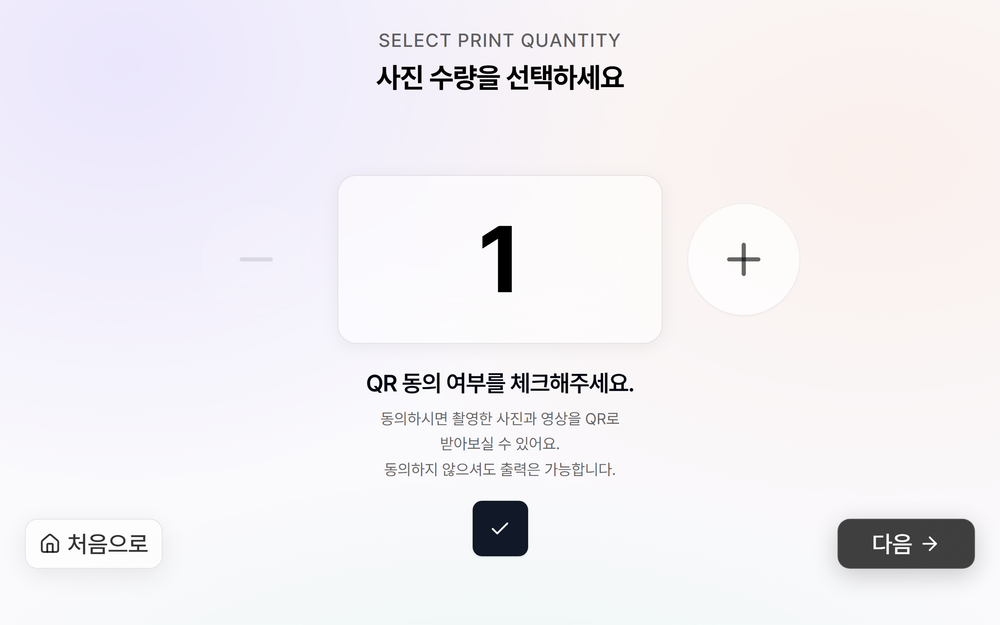
② Print quantity
→
③ AI style
→
④ Take photos
⑤ Choose photos
→
⑥ AI conversion
→
⑦ AI background
→
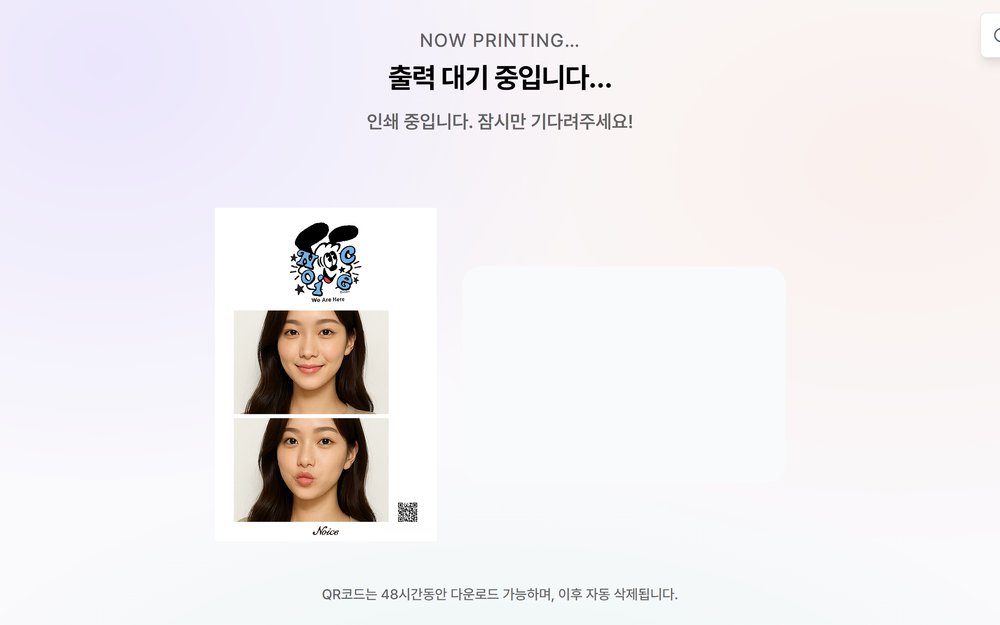
⑧ Results / printing
Compared with the November 2025 version, AI style selection now comes before taking photos. Some steps appear or are skipped depending on portrait and background AI settings. Multiple registered frames add a frame-selection step. A fixed print quantity can skip quantity selection.